

It’s increasingly evident that we are living in a cashless society, where we made seamless transactions by scanning our cards and conclude our purchases of clothing and groceries with the ‘beep’ from the machine. Sometimes, we find ourselves making significant purchases carelessly, blurring the boundaries of our financial awareness.
Difficulties In Budget Tracking
Not too long ago, when I was a student, I found myself struggling to save money, and I can’t seem to find the reason why its so challenging. Despite trying on various budget tracking and journaling apps, I am unable to update them consistently. It wasn’t until I sat down for awhile to seriously reflect on my troubles did I manage to identify the obstacles that I faced in budgeting. These includes slow loading times of apps, overwhelming options to input or record, and a very large reason is due to the lack of customization among these trackers for myself.
I needed a budget that is made specially for my self and the method of recording have to quick and engaging to me. My daily budget has to keep me constantly motivated so that I am more likely to stay committed to tracking my expenses. While automation would undoubtedly help, my limited coding abilities mean that I must seek alternatives. Fortunately, the is a friendly alternatives such as Google Sheets which provides a user-friendly platform where I can efficiently manage my budget without the need for complex programming.
Why Google Sheet?

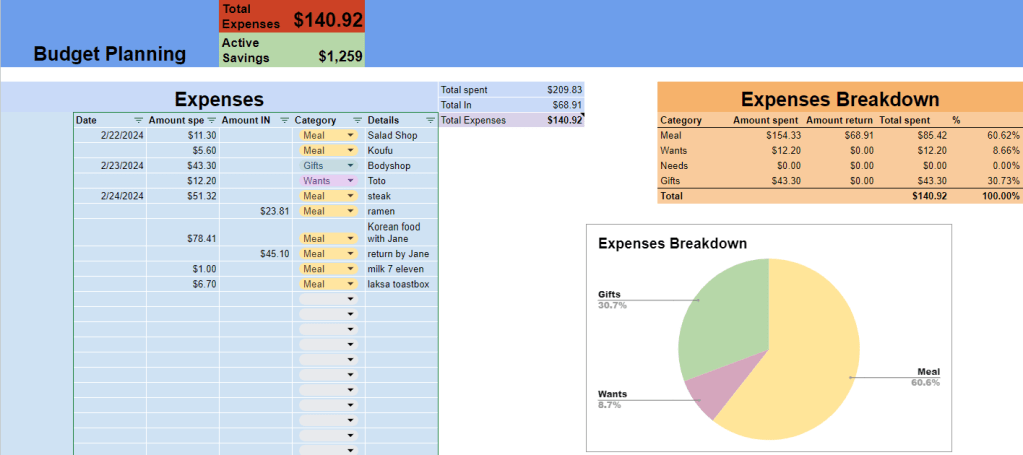
While it’s true that Excel may not be the frontrunner in data tracking and visualization tools anymore, the degree of familiarity we have with Google Sheets allow it to qualify as a highly customizable and user-friendly alternatives for many of us. It act as an excellent quick homemade personal tool for us to start with. With my top priorities being the ability to record data swiftly and effortlessly. Google Sheets excels in this aspect, enabling us to create straightforward charts and graphs that categorize our various expenses into various budget groups. This visual representation is helpful in identifying where the majority of my expenditures lie. Furthermore, it also gives me more insights into my spending habits and identify potential areas to improve my spending behavior.
How To Create A Budget Tracker?
Hence, with google sheet as the basic application for my template, here are some tips on how to created your very own personalize tracker:
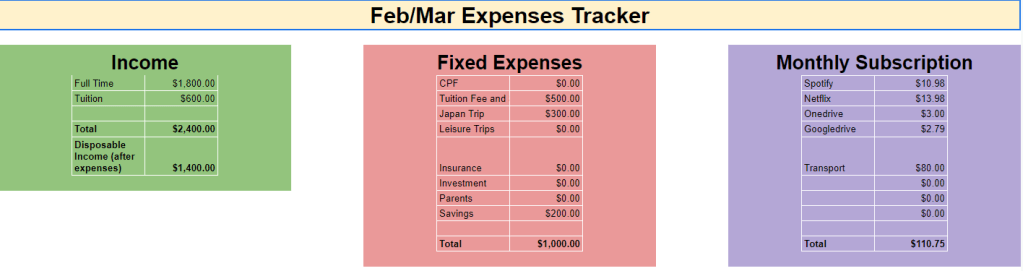
1. Identify your income sources, fixed expenses, fixed savings and monthly expenses.
Monthly fixed expenses or savings may include any long term plans for the year such as the funds you allocate for parental support, loan repayments, insurance, or savings for an annual vacation. Essentially, you’re committing to put away this amount every month with the intention of committing to this practice in the coming months throughout the year.
On the contrary, monthly expenses offer greater flexibility since they are short-term commitments that you can discontinue at any moment. For instance, services like Netflix, Spotify, and Class Pass credits fall into this category. These subscriptions can be modified each month to accommodate your budgeting strategy.
Finally, after categorizing your savings and expenses into various groups, by subtracting your fixed and monthly expenses from your total income, you will get your daily budget allocation.
2. Create your template
Now that you have your budget groups planned out, you can create your ideal daily budget tracker template to monitor your expenses.
After allocating your fixed savings and other expense categories, simply subtract them from your total income, and voilà! You’ll have your daily budget available for the month.
With some of those handy excel formulas, you can automate your budget such that you only need to input your daily expenses, and the calculations will be done automatically. Something just like this :
3. Helpful Excel Formulas
Some common formulas that I had used to create these template are:
- Sum: =sum(column range)
- This will give you the total sum of the selected column range.
- Basic addition/subtraction between cells: =cell 1-cell 2 or cell 1+cell 2.
- A straightforward and easy way to add and subtract values across various expense group to link your calculations together.
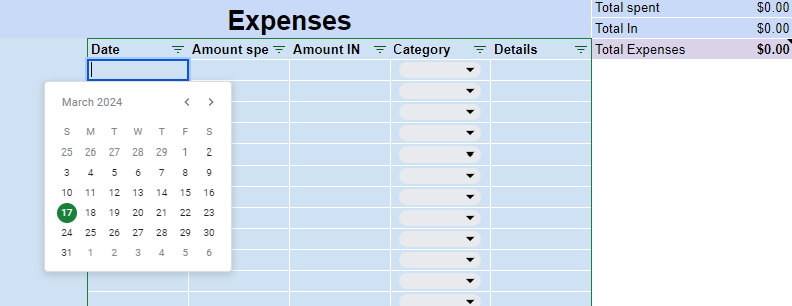
- Data -> Data validation-> Criteria: is date -> select relevant column -> Apply
- Doing so will allow you to fill in the date quickly as a calendar pop up
With your new budget template is ready, feel free to customize it with your favorite colors, fonts, or design layout to create your very own personalized expense tracker.
Now that the groundwork is completed, using it is the easy part. Whenever you make a purchase, simply record it with your mobile phone by accessing the Google Drive app. If you use the template regularly, it will conveniently appear at the top of your most recent files, making it easy to spot and you can have it edited within seconds. Now that you have your budget template ready, sit back and have fun with your new tracker!

 Kindling Soul